1
What you need
eIDRent runs on an iPhone or an iPad with iOS or iPadOS 17 or newer. Nothing else is needed to get started: renting out, keeping a product list and taking items back all work without extra hardware.
On which devices
- iPhone — the iPhone XR and XS and everything after them, plus the iPhone SE of the second and third generation. The iPhone X, 8 and older can no longer run iOS 17.
- iPad — the iPad of the sixth generation and later, the iPad Air from the third, the iPad mini from the fifth, and every iPad Pro from 2017 on.
- Mac — any Mac with Apple silicon. The app runs there as an iPad app and reads the card just as well, over Bluetooth or with a USB-C reader.
Two devices join in if you want more
- A card reader to read the identity card. That can be a Bluetooth reader — the Zetes Sipiro M BT or the FEITIAN bR301BLE — or an ordinary eID reader in the USB-C port. Without a reader the app works fine; you simply skip the identification step.
- A receipt printer for the rental ticket: a thermal printer with a network or wifi connection, or an AirPrint printer.
Look in your cupboard or drawer first
Is there still an eID reader from the bank or the pharmacy? Plug it into the USB-C port — with a two-euro adapter if it has a USB-A plug — and check under More → USB reader whether the device sees it. If it is in the list you need buy nothing: the app uses it straight away. Any reader of the USB CCID class works, and nearly all of them are. Tested with the OneSpan Digipass 905, also sold as the VASCO DP905, at around € 13.
Or buy one on a cable
Nothing in the cupboard? Then the cheapest road is an ordinary eID reader on a cable. We tested the Sitecom MD-1002: a 60 cm cable with a USB-C plug, straight into the phone. Nothing to pair, nothing to charge, and the reader stays put on the counter while you insert the card.
- Indicative price — € 14.99 incl. VAT
- Connection — USB-C, straight into the port
- Tested on — iPhone and Mac
- On sale at — MediaMarkt, product code MD-1002
A second one we tested, which does the job just as well on iPhone and Mac: the Xssive CR02, also around € 14.99. It has no cable and clicks straight into the USB-C port. On sale at bol.com.
Or buy a Bluetooth reader
No cable, no adapter, and the port of your device stays free. We work with the Sipiro M BT 4.0, also sold as the FEITIAN bR301BLE. That is the model eIDRent was tuned with.
- Indicative price — € 85 excl. VAT
- Delivery — 1 to 2 working days
- Shipping — free from two devices
- Available at — eidshop.be
- In the box — the reader and a USB-A to USB-C charging cable, 24 months warranty
Sign your device in to iCloud if you plan to work with more than one iPhone or iPad later on. See chapter 13.
2
Try it out first
Before entering your own data, you can fill the app with sample material. That way you see straight away what a busy afternoon looks like.
- Go to MoreThe last tab, bottom right.
- Choose Load sample dataUnder the heading Try it out. The app fills up with a few go-karts, a quad and some running rentals.
3
Entering your products
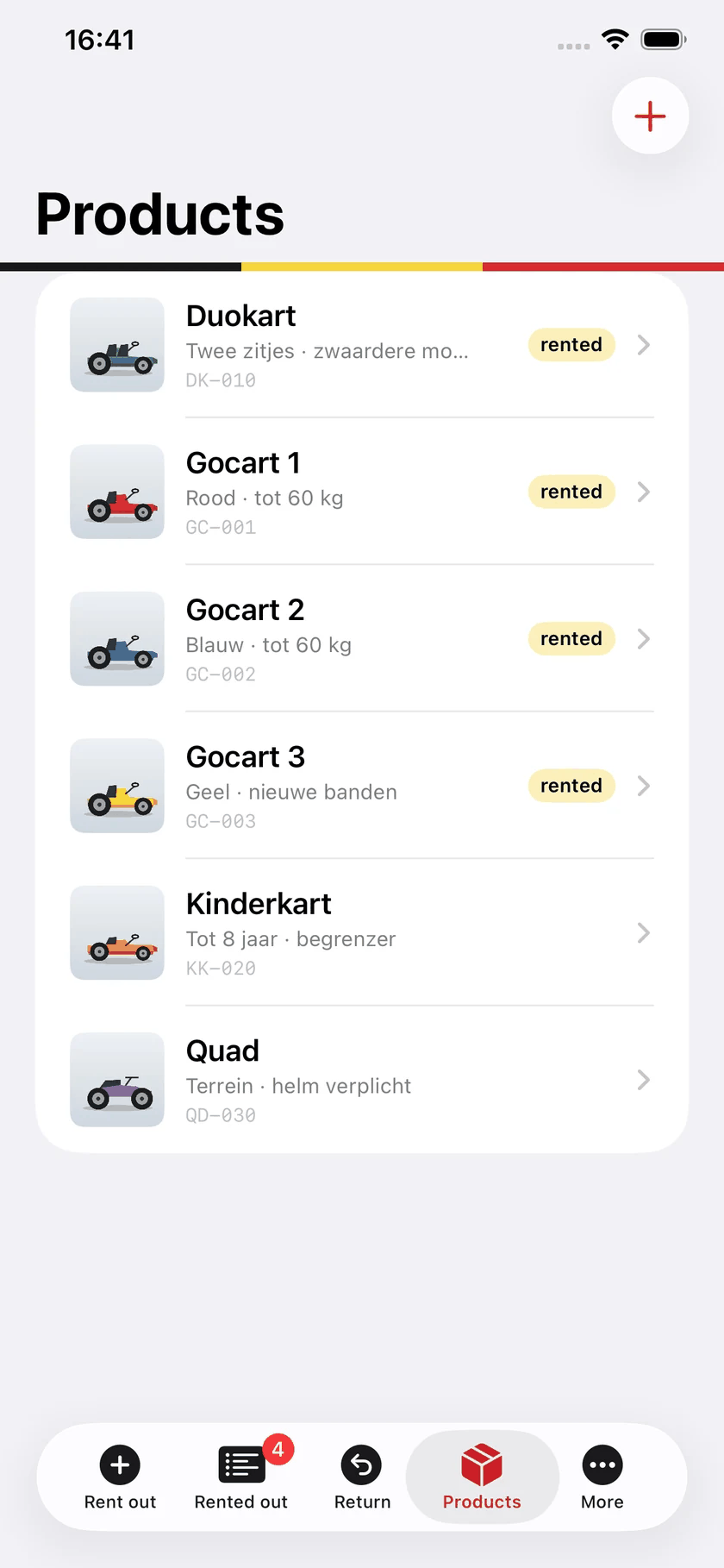
Everything you rent out is entered once. After that you simply pick it or scan it at each rental.
- Tab Products, then the plus buttonTop right.
- Give it a name„Go-kart 3” reads faster at the counter than „Kart”.
- Choose the quantityAt 1 it is one unique item. Set it higher and it becomes a type with that many pieces. The difference is explained below.
- Fill in the infoA short description: colour, condition, anything worth noting.
- Add a codeThe barcode or QR code stuck on the item itself. Scan it with the camera or type it in.
- Take a photo or pick a drawingHandy when items look alike. No photo at hand? Choose a standard image offers a list of drawings: go-karts by number of seats, bikes, boats, tools, garden machines, party gear.
- Fill in the pricesPer period: half an hour, an hour, a day, a week. Leave blank what you do not offer. Copy prices from another product puts the same rates on a similar item in one tap.
Unique items or types: two ways of working
There are two ways to put your equipment in the app, and you can mix them freely. The difference is the Quantity field.
- A unique item has quantity 1 and a name of its own, like „Go-kart 7”, with its own barcode. At any moment you know exactly which item is with which customer. While it is out it disappears from the picker until it comes back. Scanning works both ways: when renting out and when taking back.
- A type has a quantity greater than 1, for instance „Bike” with 12 pieces. You create one product for all the pieces together and do not need to number them. The picker shows how many are still in, „10 of 12 left”, and on the rental screen the plus button puts as many on one rental as the customer takes. The ticket then reads „2 × Bike” with the total amount.
Which one to choose?
Use unique items for anything where you want to know exactly who had it: go-karts, quads, expensive equipment, anything with a maintenance log or a damage history. Use a type for anything interchangeable that you have in larger numbers: city bikes, helmets, paddles, beach chairs. A business with twelve identical bikes and four numbered go-karts therefore creates one product „Bike” with quantity 12 and four products „Go-kart 1” to „Go-kart 4”. They may sit together on one rental.
What changes with a type
- Taking back goes through the QR code on the ticket. The app then shows the bikes of that rental and you tick how many are back. If someone turns up later with the third bike, the rental stays open until that one is in as well.
- Scanning the item itself is less useful with a type: all bikes carry the same sticker or none. If you do want to scan per bike, make them unique items with numbered stickers.
- The quantity can be changed at any time, even while pieces are out. Bought three more bikes? Set it to 15. Lower it below what is out and the picker simply hides the type until enough have come back.
- Prices work the same as for a unique item: per period, entered once for the whole type.
Groups and views
Give every product a group (bikes, vehicles, machines, accessories: you pick the names yourself, in the product screen under Group). As soon as there are groups, a row of buttons appears above the product list and above the choice screen when renting out: All, bikes, vehicles… Tap a group and you only see those products; the choice stays until you change it.
With the button at the top left of the product list you choose the view: list, small tiles or large tiles. The tiles show the photo large, with the badge “rented out” or “2 of 12 out” on it; the large tiles also show the info and the prices. On an iPad in landscape, six to eight products sit side by side. The same view applies to the choice screen when renting out.
A group you no longer need is deleted in the Groups screen (the folder button in the product list): swipe left, or open the group and tap Delete group at the bottom. The products remain, with their own prices, but no longer belong to a group.
Default rates per group
In the product list, open the Groups button (the folder at the top left). Per group you set default rates there: formulas, prices and follow-on rates, exactly as for a product. When you then create a new product in that group (for example with the list set to “Bikes”, or by picking the group in the product screen), those rates are filled in right away. They remain copies: you can still adjust them per product. To put the defaults on all products of the group after all, use Apply to the products of this group in the group.
Rates: as many formulas as you like
Every product has its own list of formulas, each with a name, a duration and a price: half an hour, an hour, a day, a week, but just as well 2 hours, 4 hours, 2 days or Weekend. Open the product, tap Add formula under Rates, pick the duration and the price (with days also in half days: ½ day, 1½ day), and leave the name empty for the default name. Tap a formula to change it, swipe to delete it. When renting out, the formulas of the chosen product appear as buttons in a row, with the price next to them.
Under Follow-on rate there is a field per formula. Fill it in and the app adds that amount for anyone renting longer than that formula, per extra time its duration: for example day € 18, then + € 8 per extra day. Two days then cost € 26, three days € 34; if a week on its own is cheaper, the app suggests the week. Leave the follow-on rate empty and the app repeats the longest formula. With Until… (an end time of your own) the app suggests the cheapest combination this way; you can always adjust it. Copy prices from another product copies the whole list, handy for ten identical bikes.
Accessories: what goes along
Helmets, panniers, child seats, locks: things that go along with a rental without being the rented item itself. Create a product for them, switch on Accessory and enter how many you have. A price is optional; a pannier may cost € 2 a day, a helmet may be free.
- When renting out accessories are not in the product list but in a block of their own with a counter per accessory: plus and minus, with „14 of 20 left” next to it.
- On the ticket they appear under „Included”, with their price if they have one. The total includes them.
- At the return they are in the same checklist as the items. A helmet that does not come back stays visible.
Every rental also has a free Note field for whatever fits nowhere else: „lock no. 4 handed out”, „left tyre soft”. It goes on the ticket and stays with the rental, also after the return.
Deleting a product
Swipe left in the list and choose Delete, press and hold a tile, or open the product and tap Delete product at the bottom. The app always asks for confirmation first. If the product is still out on a running rental it cannot be deleted: take it back first. Closed rentals in the history simply remain.
4
Starting a rental
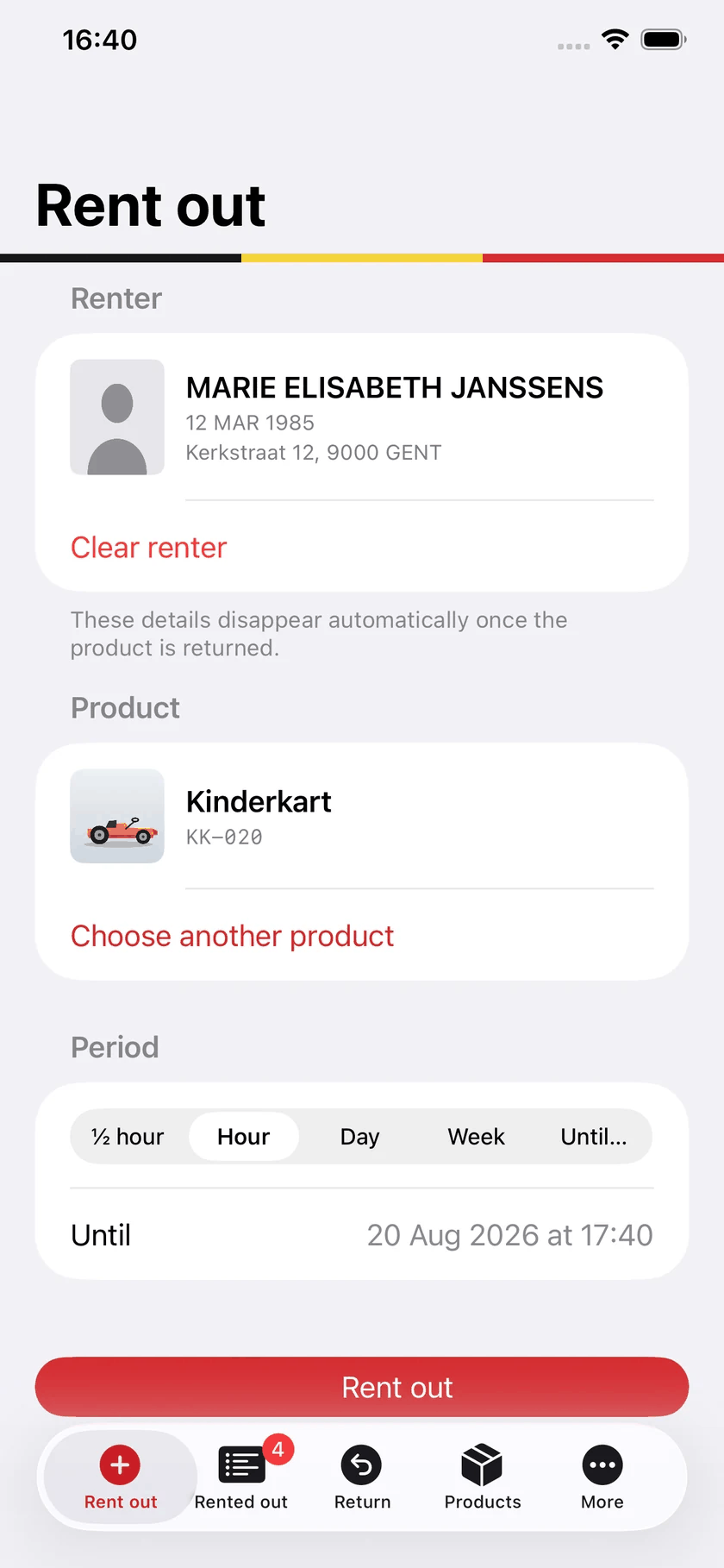
This is the screen you will use most: the Rent out tab. From top to bottom you work through three blocks.
- RenterTap Read eID to read the identity card. This is optional — skip it and the rental simply has no name attached. If the customer has a passport, a driving licence or a foreign card the app cannot read, choose Enter name yourself and take a photo of the document there. That photo stays on your device, never appears on the ticket or in the report, and is erased at the return like the other renter data.
- ProductScan code with the camera, or Choose from the list. If you work without barcodes, switch off Scan products under More: the scan button disappears and you always pick from the list. Scan a code that does not belong to anything yet and the app offers to turn it into a product. If a family rents three go-karts, scan or choose all three one after the other: one rental, one period, one payment and one ticket.
- PeriodThe formulas of the chosen product (half an hour, an hour, a day and a week by default, but also your own such as 2 hours, see Rates), or Until… for an end time of your own. Under More → Grace period 2 minutes are added by default to every rental on top of the period, for the walk to the till or adjusting a seat; they are included in the end time on the ticket. The end time appears right under your choice. The start time is Now; if the customer only leaves in a quarter of an hour, because you are still preparing equipment or giving instructions, tap Change and pick the start time. The end time and the ticket follow.
- AccessoriesIf you have marked products as accessories, there is a counter per accessory here. Two helmets and a pannier? Three taps.
- PriceAs soon as a product is chosen you see the price per product for the chosen period, a field for a discount and the total. The amount per product can still be adjusted here, for instance with a custom end time. All of it goes on the ticket.
- PaymentCash, Card or Open. This one is required: the Rent out button stays greyed out until you have chosen. Nothing is preselected, because a default gets carried along all day without thinking and then your figures are worthless.
- Press Rent outThe rental is recorded. If a printer is set up and automatic printing is on, the ticket comes out immediately — no confirmation needed.
Whatever is out at that moment disappears from the list. So you cannot lend the same go-kart twice at once.
5
Connecting the card reader
The identity card is read by a separate Bluetooth reader. You connect it once; after that the app finds it again on its own.
- Switch the reader onIts light should blink.
- Go to More → Card readerThe app searches for readers nearby over Bluetooth.
- Pick your reader from the listFrom now on its name appears next to Card reader.
- Back to Rent outPut the card in the reader and tap Read eID.
The app takes the surname, given names, date of birth, address and portrait straight from the chip. That takes a few seconds.
Without pressing the button
Switch on More → Read automatically on insertion and the rental screen needs no tap at all: the moment the card goes into the reader, the app reads it. At a busy counter that saves a step with every customer.
- It only works on the Rent out screen. On Products or Return nothing happens — a card that lands in the reader there fills in no renter.
- It only works while nobody has been filled in yet. A card left sitting in the reader is not read over and over, and a name you typed yourself is never overwritten.
- The switch is off to begin with. Reading automatically means a card someone merely puts down is read too, and that should be the business's own choice.
If something goes wrong, More → APDU traffic shows the full conversation between the app and the card. It is technical, but it is exactly what someone needs to help you.
No reader yet? More → Buying a card reader tells you which model we use, what it costs and where to get one. Chapter 1 repeats it.
6
The overview: what is out
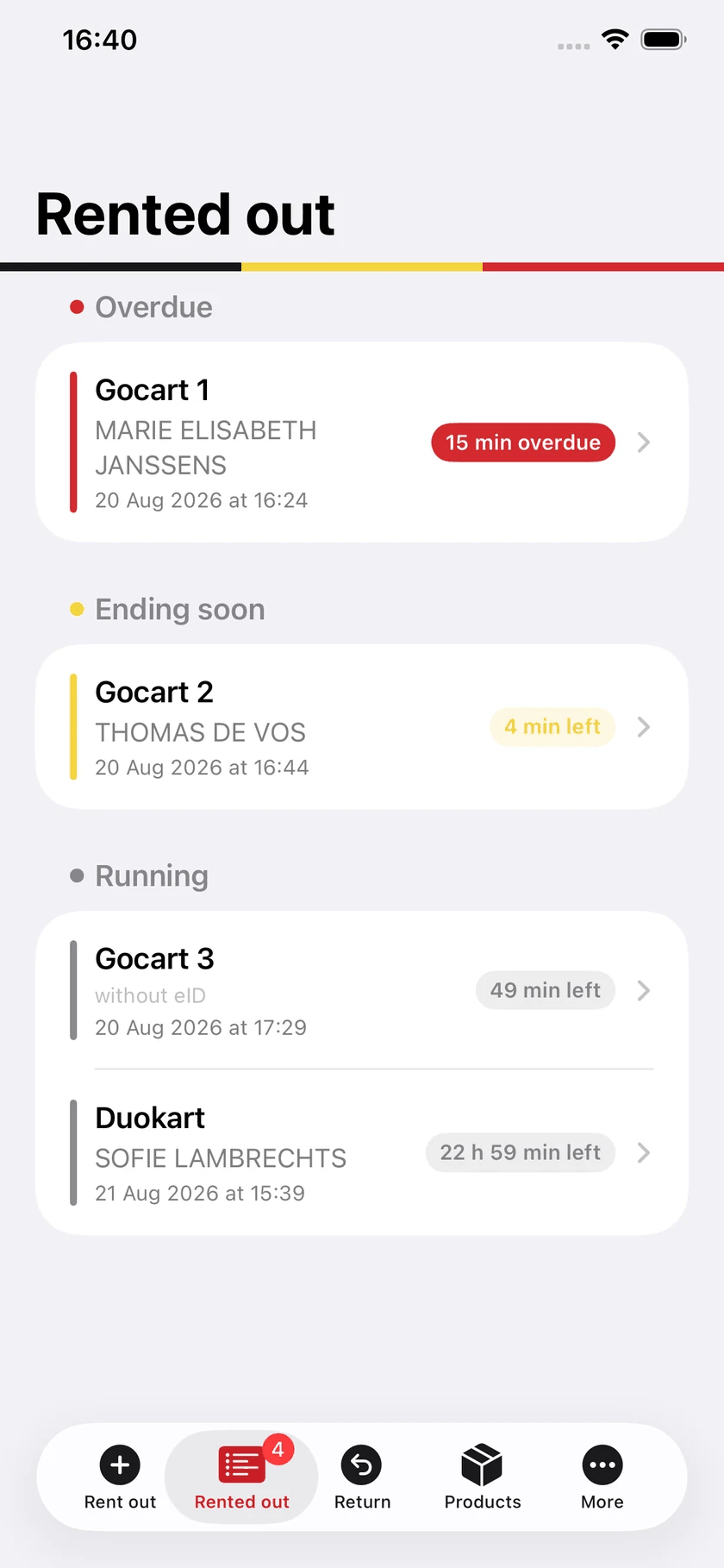
The Rented out tab is your dashboard. The colour tells you everything:
- Red — overdue. At the top, because that is what needs solving.
- Yellow — ending within the half hour. Time to keep an eye out.
- Grey — running, nothing the matter.
Tap a rental for the full picture: product, period, the renter with their portrait, and the QR code for this rental. That is also where Print ticket again and Product returned live. With several items, each item has its own Return button, and Everything is back closes the whole rental.
Extending
Customer wants to stay longer? Swipe right in the list for +30 min or +1 h, or open the rental: under Period there are buttons for a quarter of an hour, half an hour, an hour and a day, and the Until field lets you pick an end time of your own. The original end stays listed. If the customer was already over time, the extension counts from now and not from the expired end.
The price does not change by itself. Adjust the amounts per product, or tap Recalculate price for the new duration: the app then calculates per product with the daily and hourly rates, as with a custom end time.
Adjusting
While a rental is running you can correct almost everything on the detail screen: add a product (from the list or by scanning a code) or remove one, the price per product, the payment method, the discount, the note, the renter info and the renter themselves. You can get there from the Return tab as well: swipe right on a rental and choose Adjust, or press and hold the row.
7
Taking an item back
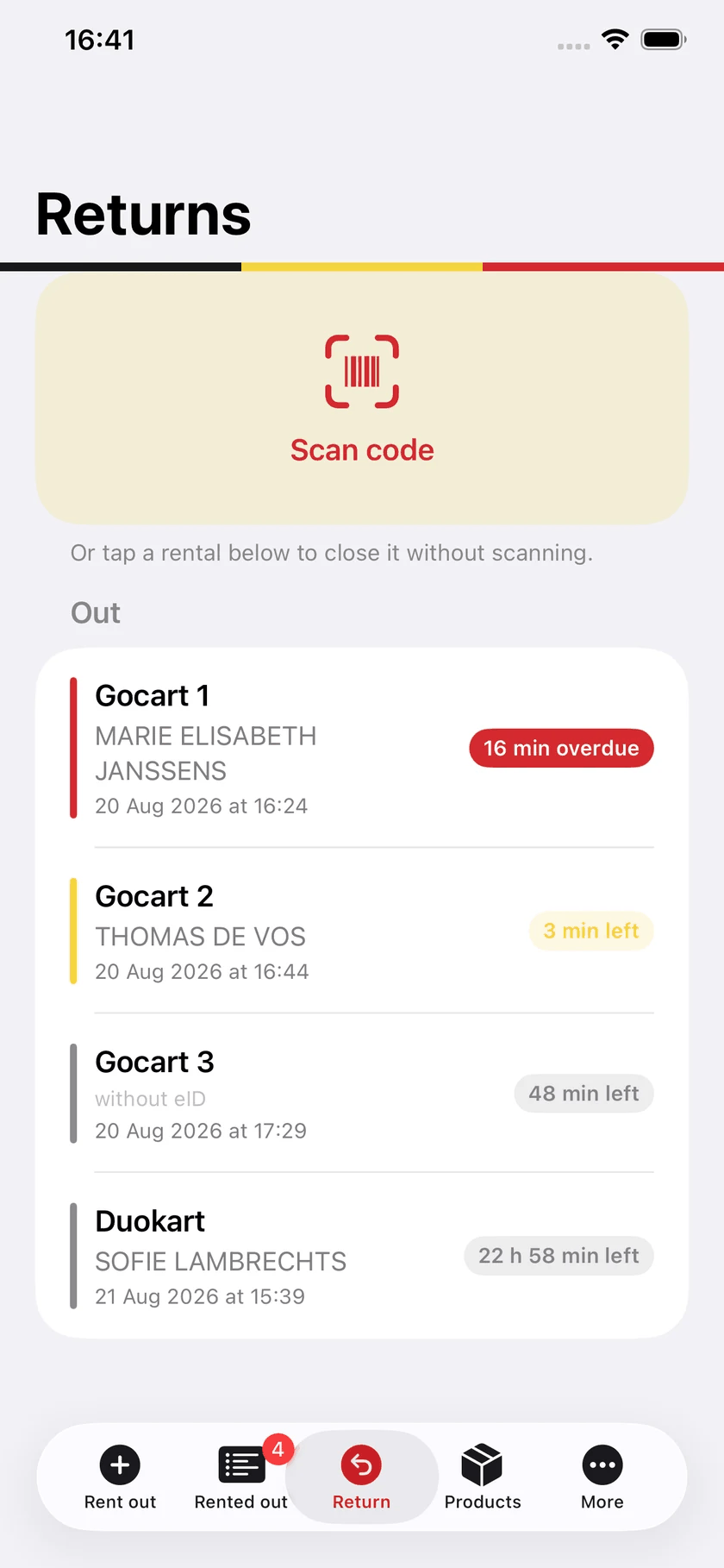
Tab Return, then Scan ticket or code. The camera recognises two things:
- The QR code on the rental ticket. It points to one particular rental. Even with three identical go-karts out, the right one closes.
- The barcode on the item itself. Handy when the ticket has gone missing. If the rental holds several items, only that one item comes back.
If several items are on the ticket, the app asks which ones are back. Everything is ticked in advance; if someone turns up later, untick that item. The rental stays open until the last item is in, and the list shows 2 of 3 back in the meantime.
If scanning will not work, simply tap the rental in the list below. Or use Enter code manually in the scanning screen.
Once everything is back, the same thing always happens: the rental moves to the history and all the renter's data — name, date of birth, address, card number, portrait — is erased. What remains is which item, from when until when.
8
Your company details and the ticket
Go to More → Company & ticket. What you enter here appears on every rental ticket.
- Logo — pick an image from your photo library. A receipt printer prints in black and white, so a logo with crisp lines comes out far better than a photo full of greys.
- Name, street, postcode and town, phone — these lines sit under the logo.
- Email address — where the end-of-day report goes by default. See the chapter on payment and the end-of-day report.
- Closing line — optional, at the bottom of the ticket. Your opening hours, for instance, or a short rental condition.
The ticket shows your logo (or, until you choose one, the eIDRent logo), what the item is, the price, when the rental starts and ends, how long it runs, and the QR code for the return. The renter's name is deliberately left off, so no personal data leaves the building on paper.
Returned late: the fee
Under More → Late fee you set an amount per hour started and from how many minutes late it counts. If someone returns later than the end time on the ticket, the app asks at the return whether to add the fee, with the suggestion already filled in. Adjust the amount or add nothing, for a regular customer. The fee appears separately in the rental's detail, on the ticket when you print it again, and counts in the end-of-day report and the statistics.
9
Setting up the printer
There are two roads to paper. Set up both and the receipt printer wins.
A receipt printer on your network
This is the cheapest and the most dependable route. An ordinary thermal receipt printer with wifi or a network cable will do; it costs a fraction of an AirPrint model and prints the QR code more sharply, because the printer draws it itself.
- Find the printer's IP addressIt is usually on the test page it prints when you switch it on, or in its own menu.
- Enter it under Printer IP addressFor example 192.168.0.50.
- Leave the port at 9100That is the right one for almost every receipt printer.
- Choose the roll width58 or 80 mm — have a look at the roll that is in there.
- Press Print a test ticketA ticket with made-up details comes out.
An AirPrint printer
Without a receipt printer on the network, AirPrint will do. Tap Printer at the bottom of the screen and pick one from the iOS list. The ticket is then printed as a laid-out page rather than as a receipt.
Automatic or not
With Print automatically on, every new rental produces a ticket by itself, with no screen in between. Switch it off and you only print deliberately, through Print ticket again on a rental's screen.
Cash drawer
Do you have a cash drawer connected to the receipt printer with its cable (the “DK” socket at the back of the printer)? Then switch on Open cash drawer on cash under Company & ticket. The drawer pops open at every cash payment: when renting out, together with the ticket, and when you set a payment to Cash afterwards, for instance an “Open” that is paid after all. The Open cash drawer button tests the connection or opens the drawer for change. This only works with a receipt printer on your network, not with an AirPrint printer.
10
Giving the printer a fixed address
The app looks for your receipt printer at its IP address. The printer borrows that address from your modem — this is called DHCP — and a loan runs out. After a power cut, a modem restart or a long weekend the printer may come back on a different address. Nothing prints any more, and nothing is broken. Pin it down once and you are rid of it.
This chapter uses the Star TSP100 as its example, the receipt printer you meet in most shops. Another make will name its buttons differently, but the road is the same.
Step 1 — fetch the self-test page
Everything you need, the printer prints for you.
- Switch the printer offWith the switch, not by pulling the plug.
- Hold the FEED button downThe paper-feed button on the front.
- Switch it on again and let go only when it starts printingA test page rolls out, sometimes two.
On that page, look for Current IP Parameters Status. It carries the three things you need: the IP address the printer has right now (say 192.168.0.147), the subnet mask (usually 255.255.255.0) and the gateway — the address of your modem. A little higher sits the MAC address: twelve characters, for example 00:11:62:1A:2B:3C. That is this printer's fingerprint and it never changes.
Step 2 — pick your road
There are two ways to pin the address down. The first is the tidy one: you tell the modem that this printer must always get the same address. The second you set in the printer itself. Which one you take depends on your modem.
- Proximus b-box — reservations on the modem work. Take road A.
- Telenet — Telenet's modems have no reservations at all. Take road B.
- Your own router (Fritz!Box, Ubiquiti, pfSense, Synology…) — all of them can do this. Road A.
Road A — a reservation on the modem
The printer simply stays on DHCP; the modem hands it the same address every time. Nothing changes inside the printer, and that is the advantage: move it to another network later and it still works there.
- Open the modem in a browserType the gateway address from the test page into the address bar, for example http://192.168.1.1. On a Proximus b-box that is 192.168.1.1; the username and password are on the sticker underneath.
- Find the DHCP settingsOn the b-box: My modem → DHCP. On another router it is called DHCP, LAN, Devices or Network settings.
- Add a static addressPick the device with your printer's MAC address from the list and give it the address you want. Take the address the printer already has and you need change nothing else.
- Save, then restart the printerOff and on again. Print another test page and check that the address is right.
Road B — a fixed address inside the printer
Here the printer decides its own address and stops asking the modem. This works with every modem, Telenet included. There is one rule you must not break: choose an address outside the range the modem hands out itself. Break it and the modem may give that same address to a phone a month later, leaving two devices quarrelling over one number — a fault that shows up now and then and turns your hair grey.
That range is in the modem, with the DHCP settings: a start and an end address. On Telenet it is often 192.168.0.100 to 192.168.0.199. Then choose something below it, say 192.168.0.50. If you cannot find the range, take a low number between .10 and .49 — that is nearly always safe.
How you enter it depends on how old your printer is. Try the browser first; no page means the second road.
A newer printer (TSP100III, TSP100IV)
- Type the current IP address into a browserFor example http://192.168.0.147.
- Sign inUsername root, password public. Change that password afterwards; it is the same on every printer of this make.
- Go to IP ParametersSwitch on Static and fill in your chosen address, plus the subnet mask and gateway from the test page.
- Save and restartThe printer comes back on its new address.
An older printer (TSP100LAN, TSP143LAN)
That one has no web page, only a text menu over telnet. On a Mac, open Terminal (Applications → Utilities) and type:
telnet 192.168.0.147— with your own printer's address.- Sign in with root and public.
- Choose IP Parameters, set it to Static and fill in the address, subnet mask and gateway.
- Save and let the printer restart.
brew install telnet, or use Star's free setup utility on a Windows PC.Step 3 — put the address in the app
More → Company and ticket → Receipt printer: enter the fixed address, leave the port at 9100, pick the roll width and press Print test ticket. Paper comes out, you are done.
If it still will not work
- Is everything on the same network? A guest wifi is a different network, even though it comes out of the same modem. The iPad has to be on the ordinary one.
- Does the printer answer? On a Mac:
ping 192.168.0.50in Terminal. An answer means the address is right and the trouble is elsewhere. - Is port 9100 open?
nc -z -G 2 192.168.0.50 9100says succeeded when the printer is listening. - Does the app have permission? Settings → eIDRent → Local Network must be on. Without it the app may not address a single device on your network.
- Nothing comes out and no error appears? Set the printer language to Star in the same settings.
11
Language, history and clearing up
Language
More → Language: Dutch, French or English. It is independent of your device language, so a French-speaking colleague can work on the same phone.
History
More → Returned shows every closed rental. Swipe left to delete one, or use Clear all at the top right. There is no personal data left in there — that was erased at the return.
Erasing everything
More → Try it out → Erase all data empties the app completely: products, rentals, history. Your company details and your printer setting stay put.
12
Payment and the end-of-day report
With every rental you record how it was paid. That is one tap, but it is what makes your history useful afterwards: you see not only what went out, but what came in.
The four states
- Cash — paid in cash.
- Card — paid by debit or credit card.
- Subscription — covered by a subscription or season pass. Nothing to collect, but the rental is settled.
- Open — taken along, not paid yet. A deliberate choice, not the same as forgetting to fill it in.
An open payment stands out: it appears in red in the list of current rentals and in the history, with the word next to it. So you see at a glance who still has to pay, without opening a single row.
Putting it right afterwards
If the customer pays later, tap the rental — in the overview or in the history — and set the payment to Cash, Card or Subscription on the detail screen. That works even after the item has come back.
Emailing the end-of-day report
More → Returned → Email end-of-day report turns one day into a PDF and prepares an email. Handy for your accountant, or simply to read back your own day.
- Pick the dayIt starts on today, with the date written out. Another day is chosen below; later than today is not possible.
- Check the rentalsAll rentals of that day are listed with time, payment method and amount. If something is wrong, tap the rental and correct the payment method, the discount or the note; the report follows at once. Swipe left to leave a rental out of this report, a test rental for instance. Below that you see the count and the revenue per payment method. If nothing was rented that day the button stays greyed out — you do not send an empty sheet out the door.
- Add a note if you like„Till counted, € 12 over.” It appears at the bottom of the page and in the email.
- Check the addressThe address from your company details is already filled in. You can change it here; what you type is remembered.
- Tap Email as PDFThe iOS mail window opens with subject, message and the PDF attached. You press send.
The report counts the rentals that started on that day, not the returns. What went over the counter that day is what you want to know, and that is when payment happens. A go-kart that went out on Friday and came back on Saturday belongs to Friday.
Statistics per product
More → Returned → Statistics shows which products do best. Choose Week, Month, Year or All at the top and page back in time with the arrows. You first see the totals: rentals, products rented, what is still out, the average duration and the revenue. Below that is every product, most rented at the top, with a bar, the number of times, the average duration and the revenue.
Tap a product for the breakdown per period: 10 × ½ hour, 6 × hour, 2 × day, most chosen first and with the share in percent. So you see which formula your customers pick, and whether your prices match it.
- When a rental counts — in the period in which it started, just like on the end-of-day report.
- Duration — the actual duration, from start to return. Whatever is still out counts up to now.
- Revenue — per product the price on the rental, before discount; the total is after discount.
13
Working with your whole team at once
Run off your feet? Put more people on it. At the counter, on the car park or in the warehouse, your staff enter rentals at the same moment, in the same list. Nobody waits for anyone else to finish.
- Enter at the same time — counter, car park and warehouse at once. Every rental lands in the same list.
- There for everyone — what one person enters is on someone else's screen seconds later. Returns included.
- Not at the office? — handle everything from your iPhone: at the business, at home or on the road.
How to set it up
Sign all your devices in with the same Apple Account. Products, rentals and history then appear on each of them. This runs through the iCloud of that Apple Account: there is no server of ours, and we cannot reach your data.
One purchase covers all your own devices. If your staff use their own Apple Accounts, that is a separate purchase per account; for a business, Apple Business Manager is the tidiest route.
14
What happens to personal data
- The Belgian national register number is never stored. The app reads it from the card but saves it nowhere.
- The renter's data is erased automatically at the return.
- The ticket carries no name, only the item and the times.
- The data sits on your own device and in the iCloud of that Apple Account. Nothing is sent to us, and the app contains no analytics and no advertising.
- The end-of-day report carries no name: only item, time, duration, payment and status. Sending it means no personal data leaves your device.
- The payment method is kept after the return. It belongs to the transaction, not to the person, and cannot be traced back to anyone.
As the rental business you are the data controller for your customers' data. The full privacy policy is on a separate page, linked at the bottom.
15
When something will not work
No card reader found
Is the reader on and is its light blinking? Is Bluetooth on for your device? Otherwise go back to More → Card reader and pick it again.
The card is not being read
Push the card all the way into the reader and try again. The app makes several attempts by itself, so give it a few seconds. If the reader had just fallen asleep, the second attempt usually succeeds.
No ticket comes out
Run through the list: is the printer on, is it on the same wifi network, is the IP address right, and did you give iOS permission for the local network? Test with Print a test ticket — it tells you at once whether the printer answers.
Scanning does not work
Check that eIDRent has access to the camera in your device settings. On older devices scanning is sometimes unavailable; use Enter code manually at the bottom of the scanning screen instead.
A product is missing from the list
Then it is probably already out. Have a look under Rented out: items on loan disappear from the list until they are back.
Anything else
Write to info@filemakerlab.be. Mention which device you are using and what you were doing exactly — that saves us guessing.